


Description
WhatsNotify – WhatsApp Notifications for WooCommerce
WhatsNotify – WhatsApp Notifications for WooCommerce
WhatsApp Notifications WooCommerce plugin integrates Twilio to send WhatsApp
notifications to customers regarding their order status. The plugin ensures seamless communication between store
owners and customers by automatically sending messages when an order is placed or its status changes.
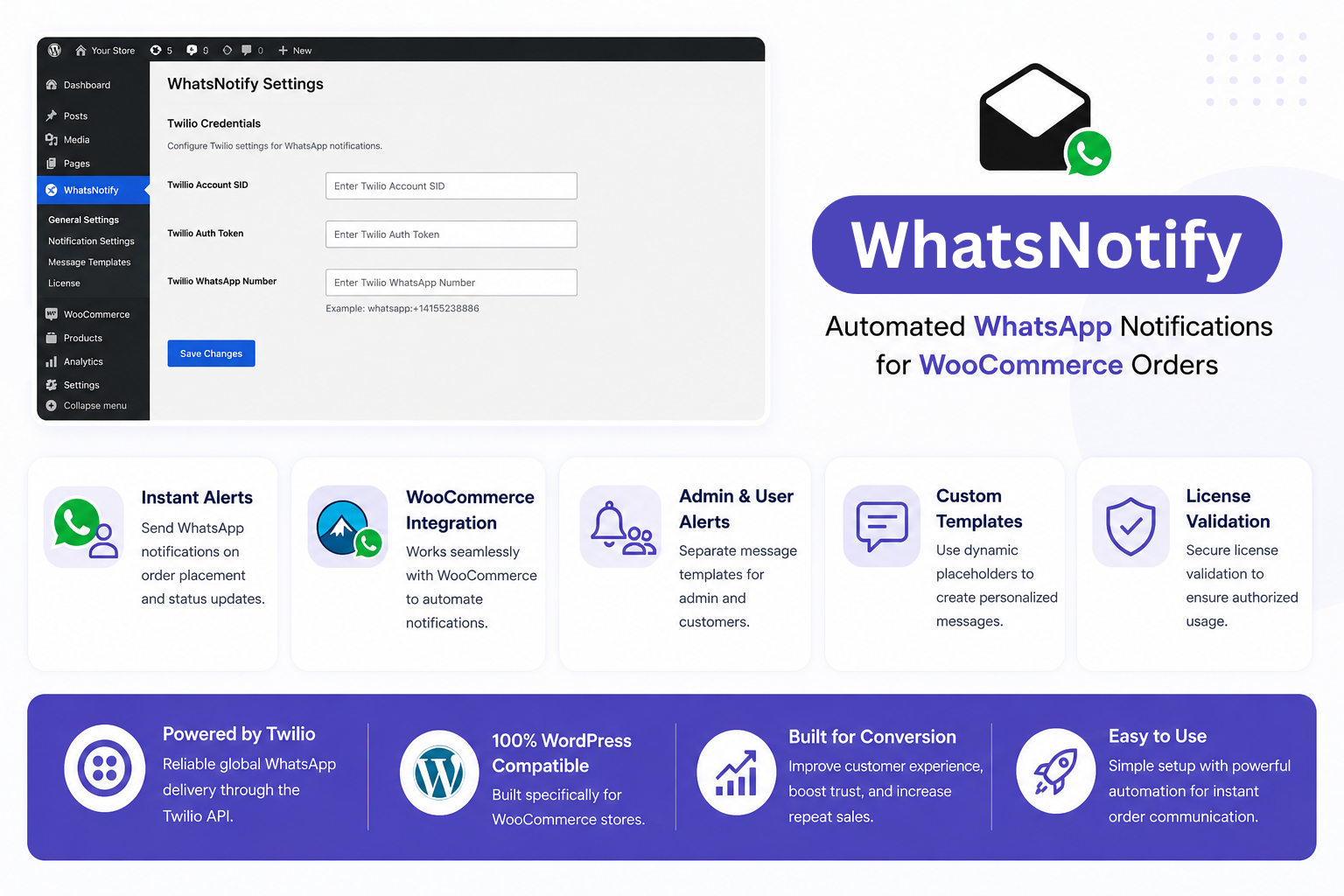
Why Use WhatsApp Notifications WooCommerce Plugin?
Using a WhatsApp Notifications WooCommerce plugin like WhatsNotify helps store owners communicate instantly with
customers. Unlike emails, WhatsApp messages have significantly higher open and response rates, ensuring that your
customers never miss important order updates.
With real-time notifications for order placement, processing, and delivery, you can improve customer satisfaction,
reduce support queries, and build trust with your audience. This makes WhatsNotify an essential tool for any
WooCommerce store looking to enhance customer engagement.
How WhatsNotify Works
WhatsNotify works seamlessly with WooCommerce
to automate WhatsApp notifications.
WhatsNotify integrates seamlessly with your WooCommerce store and connects with the Twilio API to send automated
WhatsApp notifications.
Once the plugin is installed and configured, it automatically triggers messages based on order status changes,
ensuring real-time communication with customers.
For example, when a customer places an order, they receive an instant WhatsApp confirmation. As the order progresses
through processing, completion, or shipping stages, additional notifications are sent automatically.
Use Cases for WhatsNotify
- eCommerce stores wanting instant order communication
- Dropshipping businesses needing automated updates
- Local delivery services sharing real-time order status
- Subscription-based WooCommerce stores sending recurring updates
Benefits of Using WhatsNotify
- Increase customer engagement with instant messaging
- Reduce customer support inquiries
- Improve order transparency and trust
- Automate communication using WhatsApp Notifications WooCommerce plugin for better efficiency
- Enhance overall shopping experience
Features of WhatsNotify – WhatsApp Notifications WooCommerce
– Send WhatsApp messages when an order is placed
– Notify customers when their order status changes (processing, completed,
refunded, etc.)
– License validation to ensure authorized usage
– Country code auto-detection for customer phone numbers
– Customizable message templates
Installation of WhatsNotify – WhatsApp Notifications WooCommerce
- Upload & Install:
- Download the plugin ZIP file
from ecacode.com. - Go to WordPress Admin →
Plugins → Add New → Upload Plugin. - Choose the ZIP file and click
Install Now. - Activate the plugin after
installation.
- Download the plugin ZIP file
Configuration
1. License Activation
- Go to WhatsNotify →
License. - Enter your license key.
- If the license is inactive, WhatsApp
notifications will not be sent.
Twilio API Setup for WhatsNotify
To start sending WhatsApp Notifications WooCommerce messages using WhatsNotify, you need to connect your store with
Twilio API. Twilio acts as the messaging gateway that enables your WooCommerce store to deliver real-time WhatsApp
notifications to customers.
Follow the steps below to configure Twilio properly:
Step 1: Create or Log in to Your Twilio Account
Visit the Twilio Console and either
create a new account or log in to your existing account. Once logged in, you will get access to your dashboard where
all API credentials and messaging settings are available.
Step 2: Get Twilio Credentials
From the Twilio dashboard, locate the following details:
- Account SID: This is your unique Twilio account identifier.
- Auth Token: A secure key used to authenticate API requests.
- WhatsApp Sender Number: Your approved Twilio WhatsApp number used to send messages.
Make sure your WhatsApp number is properly configured and approved within Twilio before using it in WhatsNotify.
Step 3: Configure in WhatsNotify
Go to your WordPress dashboard and navigate to WhatsNotify → General Settings. Enter your Twilio
Account SID, Auth Token, and WhatsApp Sender Number in the respective fields.
After saving the settings, your WooCommerce store will be successfully connected to Twilio, enabling automated
WhatsApp notifications.
Notification Settings in WhatsNotify
WhatsNotify provides flexible notification settings that allow you to control exactly when WhatsApp messages are
sent to customers. This ensures that users receive timely updates about their orders without overwhelming them with
unnecessary messages.
Available Order Notification Triggers
- Order Placement: Send an instant confirmation message when a customer places an order.
- Order Processing: Notify customers when their order is being processed.
- Order Completed: Inform customers once their order has been successfully completed or
delivered. - Order Refunded: Automatically send updates if an order is refunded.
- Order Cancelled: Notify users when an order is cancelled.
- Order On-Hold: Send alerts when an order is placed on hold for review or payment
confirmation.
Customizing Notifications
You can enable or disable each notification type based on your business needs. This flexibility allows store owners
to create a tailored communication flow for their customers.
Additionally, WhatsNotify supports dynamic message templates using placeholders such as:
[customer_first_name], [order_id], [order_status], [order_total].
These placeholders automatically pull customer and order data, allowing you to send personalized WhatsApp messages
that improve engagement and customer experience.
Best Practices
- Keep messages short and clear for better readability.
- Avoid sending too many notifications to prevent spam.
- Use personalized templates to increase customer trust.
- Test notifications before going live to ensure proper delivery.
- In WhatsApp Notifications WooCommerce
plugin you can Customize message templates using placeholders like [customer_first_name], [customer_last_name], [customer_full_name], [customer_email],
[customer_phone], [order_id], [order_status], [order_items], [order_total].
Advanced Automation with WhatsNotify
WhatsApp Notifications WooCommerce not only sends basic order updates but also enables advanced automation for
WooCommerce stores. With flexible configuration options, you can control when and how messages are sent to customers
based on their order journey. This allows you to create a more personalized and professional communication flow.
By using the WhatsApp Notifications WooCommerce plugin, store owners can ensure consistent messaging without manual
effort. Whether it’s sending instant confirmations, reminders, or status updates, WhatsNotify helps streamline
communication and improves operational efficiency while enhancing the overall customer experience.
Support
For support, visit https://ecacode.com or contact
support@ecacode.com.
Frequently Asked Questions
Do I need a Twilio account to use WhatsNotify?
Yes, a Twilio account is required to send WhatsApp messages through the plugin.
Can I customize the WhatsApp messages?
Yes, WhatsNotify allows full customization using dynamic placeholders like customer name, order ID, and order
details.
Does this plugin support all WooCommerce order statuses?
Yes, it supports all major order statuses including processing, completed, cancelled, refunded, and on-hold.
Is this plugin compatible with all WooCommerce themes?
Yes, WhatsNotify is designed to work with most WooCommerce-compatible themes.
Is WhatsApp Notifications WooCommerce plugin suitable for small stores?
Yes, this plugin is ideal for both small and large WooCommerce stores looking to automate customer communication.